


Button Mapper: Remap your keys
3.41.67K Reviews
App Specs
- Version
- Varies with Device
- Updated On
- License
- Free
- Downloads
- 5,000,000+
- Developer
- flar2
- Categories
- Personalization
- Platform
- Android
Screenshots
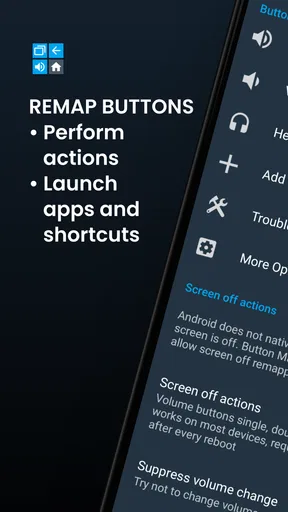
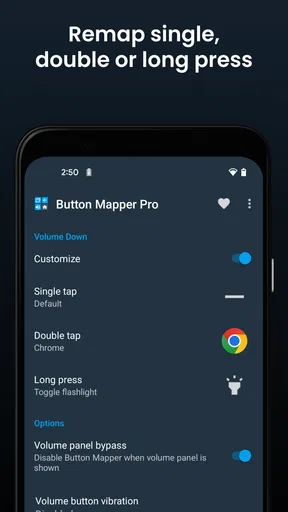
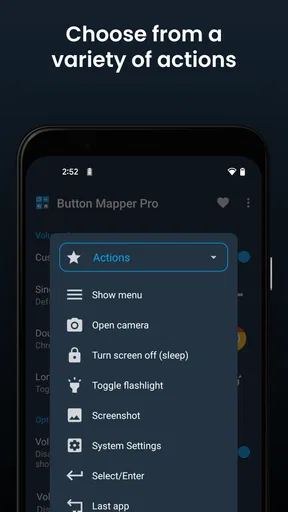
 Analysis by AppCompare
I tend to notice a phone’s physical buttons most when I’m using it one-handed, carrying something, or trying not to look at the screen. Button Mapper: Remap your keys is built for people who want those buttons to do more useful work. It’s an Android personalization app from flar2, and its appeal is simple: you can assign different actions to supported hardware buttons instead of relying only on the usual controls.
That idea sounds small, but it can change how a familiar phone feels. The useful question is not whether every button should be remapped; it’s whether one or two actions you repeat every day would be easier to reach this way. I’d start with a clear, low-risk task—such as opening an app you use often—rather than changing several controls at once.
Decide what you want a button to save you
Before installing any remapping tool, I’d think about the specific inconvenience I want to solve. Is opening the camera awkward when the phone is locked? Do I keep reaching for the screen to launch one app? Would a shortcut be useful while my other hand is busy? If I can name a repeated action, Button Mapper has a practical purpose. If I only want to customize for its own sake, the setup may become a project without making the phone better to use.
This is a different kind of personalization from changing a wallpaper, icon pack, or launcher layout. Those options alter what I see; button remapping changes how I trigger an action. That distinction matters because hardware controls are easy to press by habit. A useful mapping can save a few steps, but a poor one can make volume or navigation feel less predictable.
Getting Started with Button Mapper
First off, let me tell you, setting up Button Mapper is a breeze. You just download it from the Play Store, and you're off to the races. Once you open the app, you’re greeted with a clean, straightforward interface that guides you through the process of customizing your device's buttons.
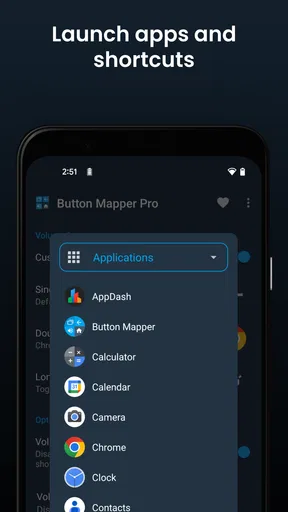
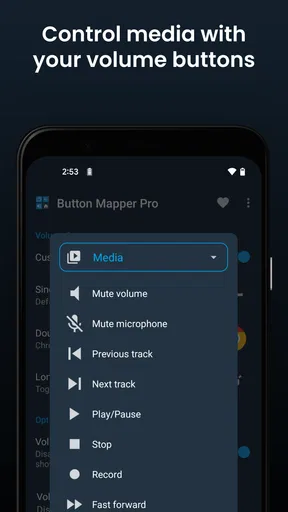
So, what exactly can you do with this app? Well, it lets you remap the functions of your phone’s buttons. That means you can change the action of your volume buttons, home button, or any other button to perform different tasks. Want to launch your camera with a double tap on the volume key? Done. Need to open your favorite app with a long press of the home button? Easy peasy.
Start with a mapping you can easily undo
For a first try, I’d choose a button and gesture that I don’t depend on constantly, then assign one action and use it for a day. That gives me a chance to notice accidental presses before I build a whole set of shortcuts around it. If a mapping clashes with the button’s ordinary job, I’d change or remove it rather than trying to train myself around an irritating control.
Worth Reading Before You Choose

EA SPORTS FC Mobile 26 Is a Bigger Football Game, but It Takes Time

Flipboard Shows What News Apps Must Do Beyond the Feed

Switching to Android Auto Means Rethinking Your Driving Routine

Google Calendar Makes a Crowded Week Easier to Manage

Ludo King Makes the Most of the Minutes Between Plans

Baby Panda World Brings Quick Play to Modern Phones, but Its Game Library Feels Busy
That small trial also helps answer a practical question: does the chosen button behave consistently on this particular phone? Hardware layouts and manufacturer software vary, so a feature that sounds straightforward in principle may not feel identical across devices. I would test the action both while using the phone normally and in the situations where I expect to rely on it.
The Ins and Outs of Button Mapping
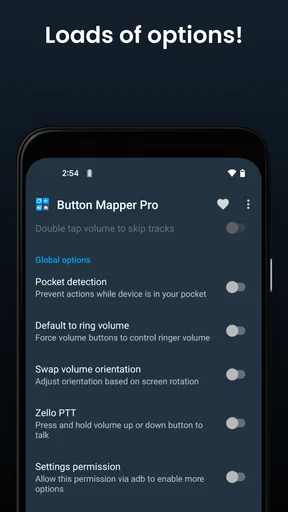
Diving deeper into the app, you’ll find a variety of options to tweak. You can choose single tap, double tap, or long press functions for each button. This level of customization is perfect for power users who like to have everything at their fingertips. The app even supports remapping of hardware keys and is compatible with most devices. Plus, it’s regularly updated to support new Android versions, so you’re never left in the lurch when you get a system update.
The different press types make it possible to reserve a familiar press for its ordinary purpose and use a less common gesture for a shortcut. That can be more comfortable than replacing a button’s main function outright. The trade-off is remembering which gesture does what, especially if you assign actions to several buttons. I’d keep the system small enough that I can use it without pausing to recall a personal map of the phone.
And the best part? You don’t need to root your device to use it. That’s a big win in my book because rooting can sometimes be tricky and void your warranty. Button Mapper gives you all the perks without any of the risks.
Where it earns a place in everyday use
A realistic use case is getting home with shopping bags and wanting to bring up a frequently used app without juggling everything to tap through the screen. A button gesture can make that single action easier to reach. Another is setting a shortcut for a task I use in the evening, when I’d rather not search through an app drawer. These are modest conveniences, not magic; the app is most helpful when a shortcut removes a repeated nuisance.
It can also suit someone who already knows which hardware control they want to repurpose and enjoys tuning a phone to match their habits. The best mappings are personal: a camera shortcut helps someone who takes quick photos, while a shortcut to a particular app matters more to someone who opens it many times a day. I wouldn’t copy another person’s setup just because it sounds clever; the value depends on what you reach for.
A Closer Look at the Features
One of the standout features of this app is its ability to trigger actions based on your location or the time of day. Imagine setting your phone to automatically switch to silent mode when you’re at the office or turn on your flashlight with a button press at night. It's like having a personal assistant in your pocket.
Context-based behavior can be useful, but I’d keep it focused. A work-time or place-based action is worth trying when it solves a recurring problem; adding conditions simply because they are available can make the setup harder to understand later. I’d also check that an action behaves as expected in the real places and routines where I plan to use it, rather than assuming a clever rule will always fit.
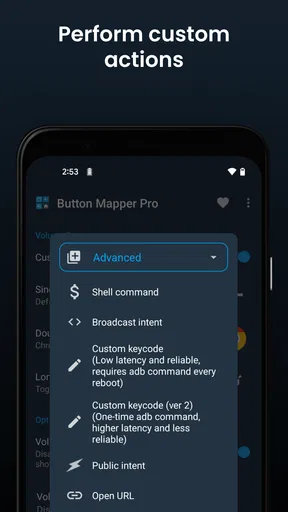
The app also lets you create custom actions, which can include opening an app, toggling the flashlight, or even launching a shortcut. You can even set an action to trigger Google Assistant, making it super convenient to get things done hands-free.
For a useful workflow, I’d pair one gesture with one task I already perform often, then leave the rest of the buttons alone until I know I want more. A flashlight action, for instance, is easy to understand and quick to test. By contrast, a shortcut that launches something I rarely use is unlikely to earn its place, no matter how satisfying it is to configure.
When another kind of personalization is a better fit
If my goal is to change the appearance of the home screen, a launcher or visual customization tool is the more direct choice; Button Mapper is about physical controls, not a new home-screen design. If I only need one app shortcut and my phone already offers a convenient on-screen route, adding a remapping layer may be unnecessary. And if I prefer every hardware button to keep its familiar behavior, the safest customization is no remapping at all.
Compared with relying on built-in settings, a dedicated mapper is appealing when I want a button action the standard controls don’t make convenient. The built-in route is usually simpler when it already solves the problem, because there is less to configure and remember. I’d choose Button Mapper for a specific hardware-button workflow, not as a replacement for every other personalization option.
What to check before settling on a setup
Button behavior can depend on the device, so I’d verify the exact button and press pattern I plan to use rather than assuming every key is available in the same way. Its minimum Android requirement is Android 4.3, and the current version is 3.35. The app has been available since October 22, 2016, but an older release history does not guarantee that every remapping behaves identically on every phone or Android configuration.
It’s also sensible to ask whether the shortcut is worth the learning cost. A double press can be easy to forget if it is used only occasionally, and an action assigned to a button I press by reflex can cause unwanted launches. I’d test one mapping at a time, keep the ordinary controls intuitive, and revisit the setup after changing phones or making a major change to how I use the device.
User Experience and Interface
What I really appreciate about Button Mapper is how intuitive it is. The user interface is designed to be accessible even for those who aren’t tech-savvy. The settings are clearly labeled, and there’s a helpful guide for first-time users. I didn’t encounter any lag or crashes, which speaks volumes about the app’s stability.
If you’re worried about battery drain, fret not. The app runs efficiently in the background without hogging resources. I didn’t notice any significant impact on my phone’s performance while using it.
There is still a small ongoing cost in attention: I have to remember which gesture I assigned and notice whether it interferes with a button’s usual role. That matters more than adding a long list of mappings. I’d treat this as a tool to simplify a specific routine, then remove anything that doesn’t become second nature.
Cost, reach, and the switching decision
The app is free to install, with in-app purchases ranging from $0.99 to $24.99 per item. It has a 3.5 average rating from around 20,000 ratings, and more than 5 million installs. Those figures suggest that plenty of Android users have tried it, while the rating is a reminder that a utility built around hardware controls won’t feel equally useful on every device or to every person.
It is rated for Everyone. For me, the sensible approach is to begin with the free experience and decide whether the mappings I actually use justify spending anything further. I wouldn’t pay simply because customization sounds appealing; I’d first see whether a shortcut works reliably in my daily routine and whether the app’s available options match what I want to do.
Switching away later is mainly a matter of whether I still want the altered controls. Before changing phones or abandoning the setup, I’d remove mappings that could confuse my normal button habits and check the controls afterward. If I decide I prefer the phone’s original behavior, returning to that familiar arrangement is a better outcome than keeping custom actions I no longer use.
Final Thoughts
In a world where we’re constantly looking for ways to streamline our digital lives, Button Mapper: Remap your keys is a game-changer. It gives you the power to tailor your smartphone experience to your liking, making everyday tasks quicker and more efficient. Whether you’re a tech enthusiast or someone who just wants a little more convenience, this app is worth a shot. So why not give it a whirl and see how much more efficient your life can become?
My recommendation is narrower and more practical: try it if there is a hardware button you wish did something more useful, and be selective about what you assign. It is a good fit for people who enjoy hands-on Android personalization and have a repeatable action in mind. If you want a purely visual makeover, dislike changing familiar controls, or can already reach your shortcuts easily, you may be happier with your phone’s standard settings or another kind of customization.
If you’re as excited as I was to try this out, you can grab a download link from the Play Store and start customizing your device today. Happy button mapping!
Pros
- Customizable button actions.
- Supports long press and double tap.
- Increases device functionality.
- Works with most apps and devices.
- User-friendly interface.
Cons
- Limited features on free version.
- May drain battery faster.
- Some actions require root access.
- Occasional app crashes.
- Compatibility issues on older devices.
FAQs for Button Mapper: Remap your keys
What is Button Mapper and how does it work?
Button Mapper is an Android application that allows users to customize the functions of physical buttons on their device, such as the volume buttons, power button, and others. By remapping these buttons, users can assign new actions like launching apps, adjusting settings, or creating shortcuts, enhancing their device's usability.
Is Button Mapper compatible with all Android devices?
Button Mapper is designed to work with most Android devices. However, some specific models or those running custom ROMs may have compatibility issues. It's recommended to check user reviews or the app's official website for any known limitations or device-specific considerations before downloading.
Does Button Mapper require root access?
Button Mapper does not require root access for most of its features. However, certain advanced functionalities, like remapping the home button or accessing system-level shortcuts, may require root privileges. Users can still enjoy a wide range of customization without rooting their devices.
Are there any permissions required to use Button Mapper?
Yes, Button Mapper requires certain permissions to function effectively. These include accessibility permissions to detect button presses and perform assigned actions. The app may also need permission to run in the background to ensure remapping functions work consistently. Always review requested permissions to ensure transparency and security.
Is there a cost associated with using Button Mapper?
Button Mapper offers both free and premium versions. The free version provides access to basic remapping features, while the premium version unlocks advanced functionalities, such as additional button actions and customization options. Users can choose to upgrade for a one-time fee if they desire more comprehensive control over their device's buttons.


